Getting started
From a wallet you already have to a funded trading account and a first trade: one wallet confirmation, one click in the signer frame.
By the end of this page you’ll have a trading account on NEAR with NEAR in it, this browser set up to sign trades, and one trade behind you. It takes one confirmation in your wallet and one click in the signer frame. After that, trades sign without a wallet pop-up.
From sign-in to your first trade
From sign-in to your first trade
What you need
Section titled “What you need”A NEAR wallet is the shortest way in. The sign-in sheet lists it first, tagged Fastest, with Meteor, HOT and Intear named under it. Bring at least 1 NEAR, the smallest starting amount, plus a little for your wallet’s own network fee.
No NEAR wallet? The sheet can also offer EVM wallet, Solana wallet and Passkey, when our service lists them. Those accounts open from a first deposit instead, covered at the end of this page.
1. Sign in
Section titled “1. Sign in”-
Press Sign in in the top bar and choose NEAR wallet.
-
Pick your wallet and approve the sign-in there. The app waits on Confirm in followed by the wallet’s name until you do.
The sheet’s small print says “0.75% fee on successful trades. Not available in some regions.” Fees and costs breaks the fee down.
2. Choose how much to start with
Section titled “2. Choose how much to start with”The next screen is Add funds to start. It offers 1 N, 5 N, 10 N and 25 N, with 5 picked, and two ways to pay: NEAR from followed by your wallet’s account name (tagged Fastest) or Other crypto (USDC, ETH, SOL, BTC and more, converted through NEAR Intents).
Keep NEAR from your wallet, pick an amount and press Add 5 NEAR. The button repeats whatever you picked.
3. Set up this device
Section titled “3. Set up this device”A small frame titled Set up this device appears with one button, Start trading. Click it.
That frame is the signer. It keeps this browser’s trading key where the page can’t read it.
4. Confirm once in your wallet
Section titled “4. Confirm once in your wallet”Your wallet now asks you to approve one transaction. The app describes it as “Adds 5 NEAR to your new account.” That single transaction creates your trading account and moves the NEAR into it.
While it lands, Setting up your account steps through “Creating account…”, “Adding funds…”, “Securing this device…” and “Almost done…”. When it’s done, you’re in.
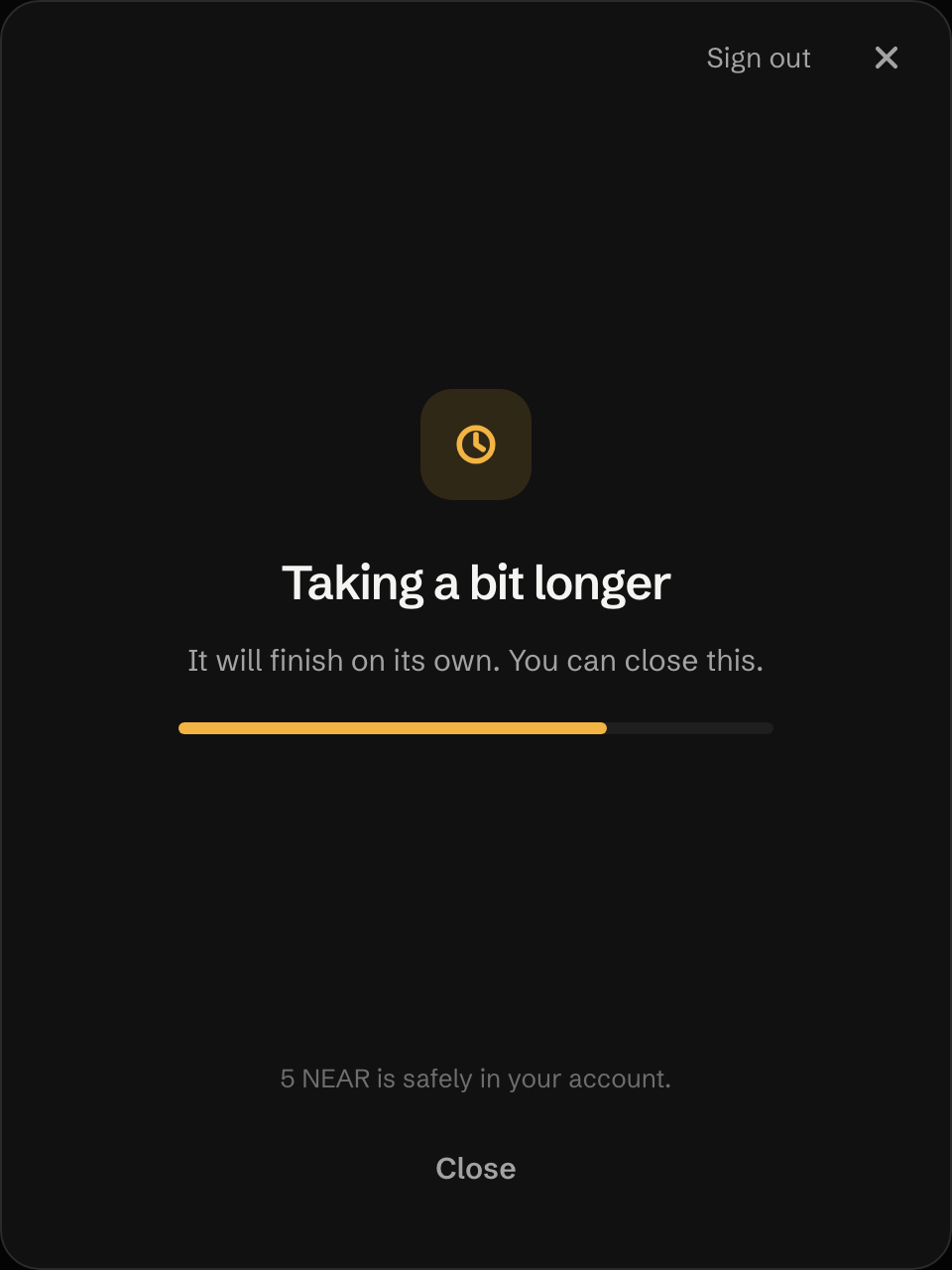
If the app shows One more step instead, the account is open and your NEAR is in it. Press Continue and confirm once more to add this device. Setup asks for funds again covers the other ways setup can stop halfway.
Where the first 5 NEAR goes
Section titled “Where the first 5 NEAR goes”| Part | Amount | Where it is |
|---|---|---|
| Rhea DCL registration | 0.1 N | Held by Rhea DCL so the account can trade on its pools |
| Storage | about 0.026 N | Locked by NEAR for the account’s own data |
| Reserve | 0.05 N | Stays in the account as plain NEAR |
| Kept free for one sell | about 0.4 N | Gas and fee room so whatever you buy can be sold |
| N available to buy with | about 4.40 N | Shown in the ticket |
The kept-free row isn’t spent. It’s why the ticket’s N available reads about 4.40 here while Max on the withdraw screen allows about 4.80. The sign-up screen’s “0.1 NEAR stays reserved” under Anything held back? is the Rhea DCL row.
5. Make a first trade
Section titled “5. Make a first trade”-
Open a token. The trade ticket sits on its page.
-
Leave Buy and Market as they are. Type an amount in NEAR, or tap a chip: 1 5 10 25 on a computer, 0.5 2 5 25 on a phone.
-
Check You receive ≈ for the token amount the quote expects. Route & fees opens the minimum you accept, the pools it goes through and each cost.
-
Press Buy and the symbol.
Your trading account signs it, and a toast follows the trade through:
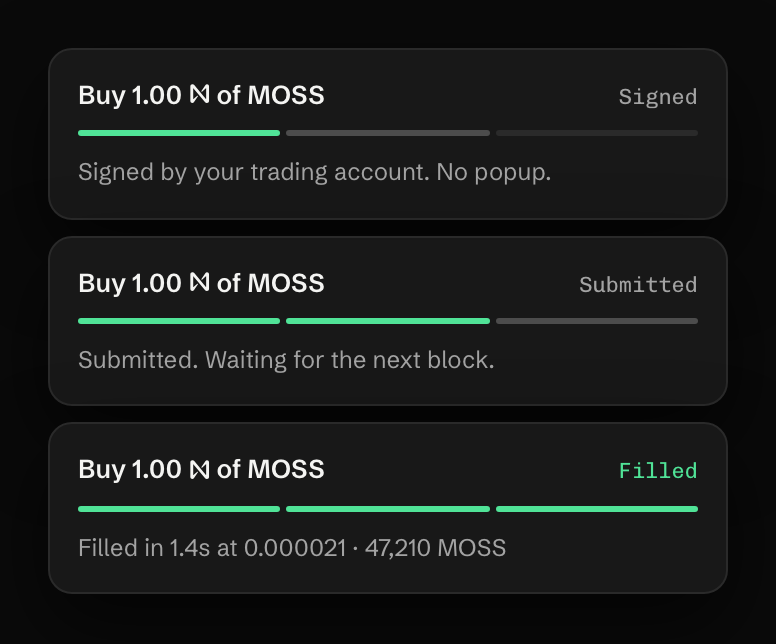
If the price moves past your slippage before the trade lands, nothing is bought and your NEAR stays in the account, less the network gas. The gear in the ticket switches between three presets: P1 Quiet at 5%, P2 Default at 10% and P3 Launch at 20%. Buy goes through every field of the ticket, and Sell covers getting out.
Without a NEAR wallet
Section titled “Without a NEAR wallet”With an EVM wallet, a Solana wallet or a passkey, the account opens from your first deposit:
-
Sign in with EVM wallet, Solana wallet or Passkey.
-
The app says “Add funds first. Your account is set up from your first deposit.” Press Deposit crypto and send from another network. Add funds lists the networks and what each card shows.
-
When the NEAR lands, the option reads NEAR deposited with the amount, and Ready to set up your account. Press Create account with followed by that amount, and confirm with your wallet or passkey.
The factory needs at least 0.7 NEAR to open an account. If you deposited less, the app tells you before anything is sent, with the amount the new account needs and what that comes to with conversion.
- Add funds: every way in, including other networks.
- Fees and costs: the fee, the gas held while a trade signs and the reserve.
- What UNRLZD is: who can do what with your account.
Last verified 15 October 2026 against R4.