Withdraw to another network
Send NEAR from your trading account to an address on another chain through NEAR Intents and 1Click: enable it once, save the address an hour ahead, then send and follow the card.
You can send NEAR from your trading account to an address on another chain, for example SOL on Solana. The send goes through NEAR Intents: 1Click quotes the swap and signs the quote, your trading account checks that signature on chain, and it pays only to an address your owner wallet saved at least an hour before. To send NEAR to a NEAR account, see Withdraw.
Before you start
Section titled “Before you start”- Trading is unlocked, and your trading account holds the NEAR you want to send.
- You know the network. The token and the network must match the address. The form checks that the address fits the network you pick.
- Cross-chain withdrawals are enabled. The first time, the drawer shows “Enable cross-chain withdrawals: one signature, once.” Press Enable and approve in your wallet. That signature stores 1Click’s quote-signing keys on your account and a ceiling of 1.5% on what a route’s fees may take.
Save an address
Section titled “Save an address”-
Open the account menu, choose Withdraw, and press + Add an address under To.
-
Pick the Token and the Network, paste the address into Address on the network, and give it a name, such as “Ledger”.
-
Press Confirm in wallet and approve in your owner wallet.
The address waits one hour before the trading key may send to it. That hour is a guard: an address added without you can’t be used straight away, and the drawer shows it, so you have time to remove it.
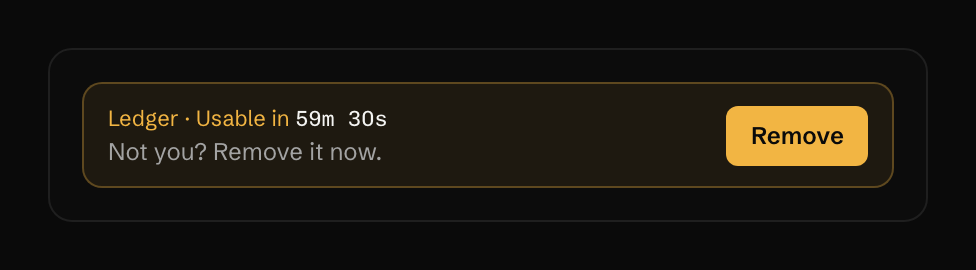
Remove takes it off at once, with no wallet popup: the trading key may remove an address, and adding one needs your owner wallet.
-
When the hour is up, pick the saved address under To. Until then the row and the button say Unlocks in and the time left.
-
Type an amount. The drawer asks 1Click for a quote and shows You receive in the token, Fees in dollars and Arrives as an estimate.
-
Press Withdraw 0.6 N (the button repeats your amount).
-
The first time this browser sends to the address, the signer frame asks “Allow withdrawals to this address?” and shows the recipient and the asset. Check them against your own copy of the address, then press Allow withdrawal.
The trading key then signs two transactions, with no wallet popup. The account refuses the send unless the signature matches one of the stored 1Click keys and the quote pays the saved address.
If you signed in with an EVM or Solana wallet, the drawer also offers To my wallet: your sign-in’s own address, with no hour to wait. Its button reads Send 0.6 N to my wallet.
What you should see
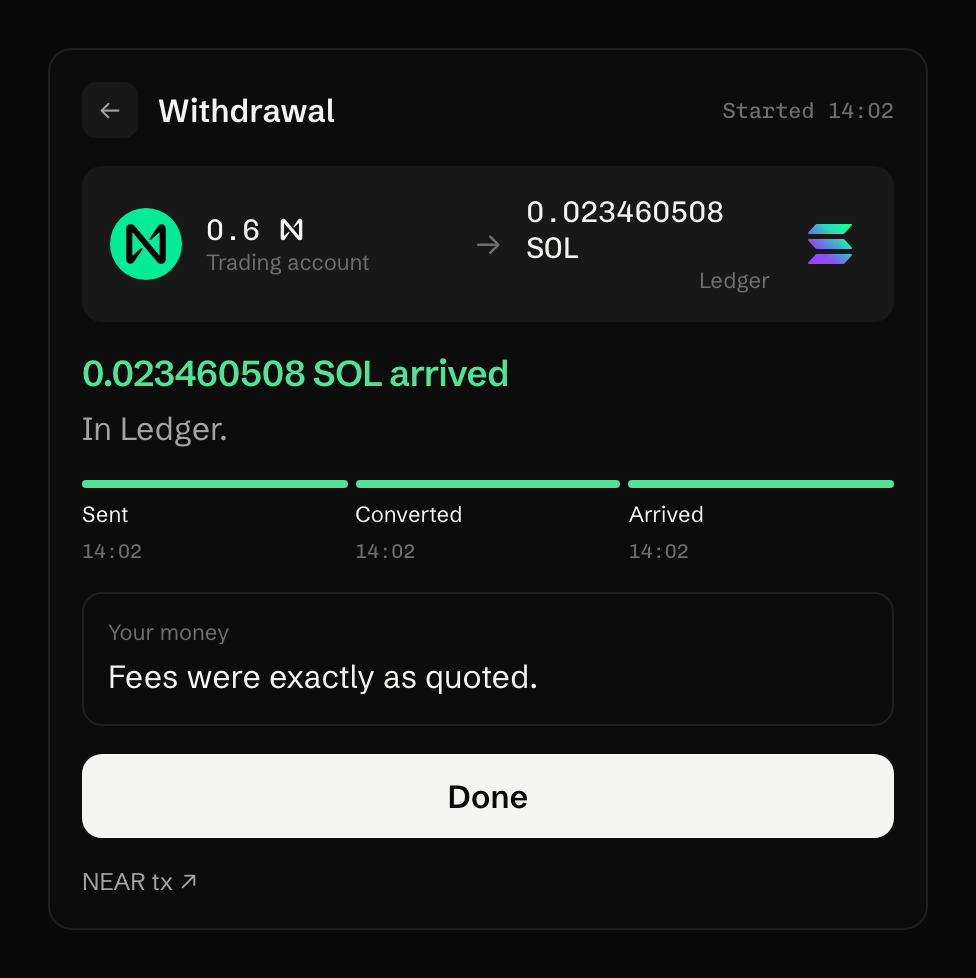
Section titled “What you should see”The card has three steps: Sent, Converted, Arrived. Its title reads “Sending 0.6 NEAR”, then “Converting to SOL”, then:
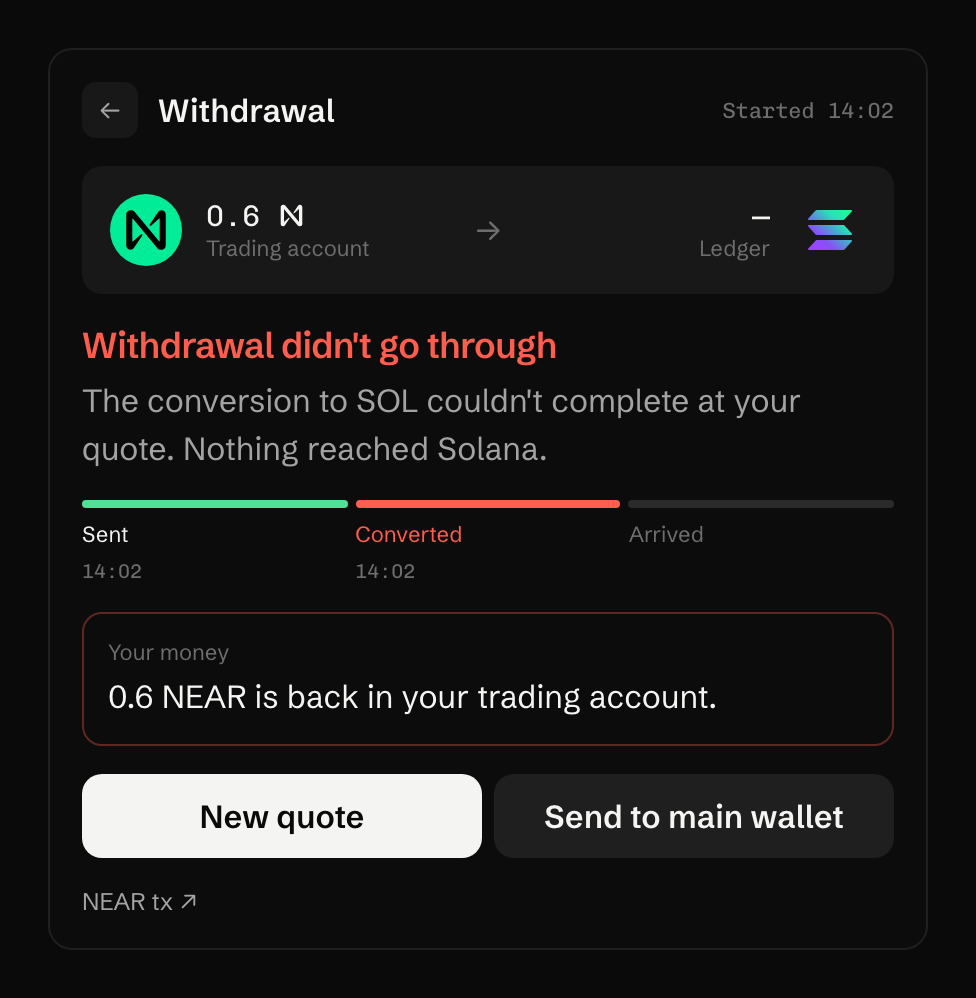
If 1Click can’t complete the swap at your quote, it refunds:
If it does not work
Section titled “If it does not work”- The row says Unlocks in. The address is in its first hour. Pick another, or wait.
- A line says the route’s fees take more than your account accepts. Small sends pay a larger share in fees. The line names the share and the 1.5% ceiling; send more, as it suggests, or pick another address.
- “Minimum is” and an amount. The route has a minimum. Send at least that much.
- “Status unknown — check your trading account balance before retrying.” Check the balance first, then press New quote.
- Trading shows Locked. See Trading shows Locked.
What it costs
Section titled “What it costs”Fees is the difference, in dollars, between what goes in and what the quote pays out, so it includes every fee and the spread on the route. It’s shown before you press. While it sends, “About 0.12 NEAR is set aside for network fees; most of it comes back after the send.” See Fees and costs.
Sources
Last verified 15 October 2026 against R4.